
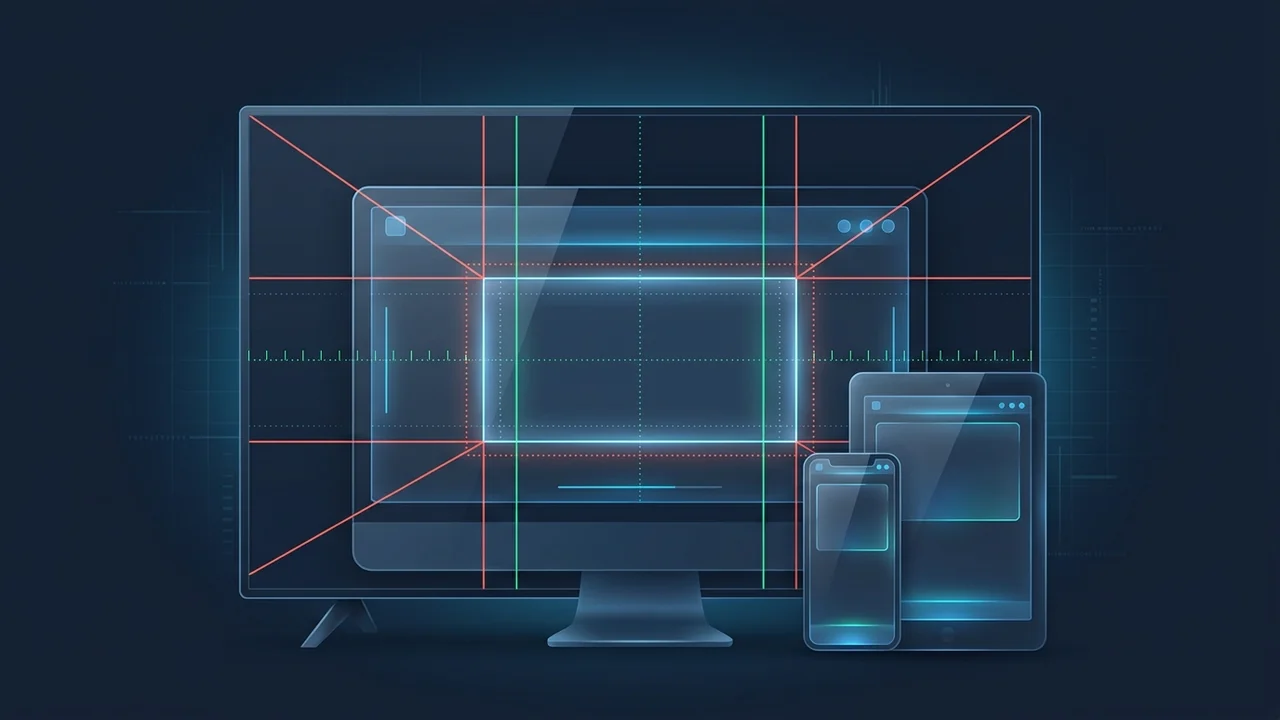
Designing a YouTube channel banner (formerly called "Channel Art") is one of the most deceptively tricky graphic design tasks in creator branding. You open Photoshop or Canva, create a standard 2560 × 1440 px widescreen canvas, place a great photo of yourself in the center, and upload it to YouTube Studio—only to open your channel on your iPhone and see your forehead and chin completely sliced off.
Why does YouTube do this? Unlike a video thumbnail, which scales proportionally as a 16:9 rectangle on every screen, a single YouTube banner file has to serve both a 65-inch Smart TV screen (which displays the entire 16:9 image) and a narrow smartphone header strip (which displays a thin horizontal ribbon across the very middle of the canvas).
If you know the exact pixel coordinates of YouTube's viewport crops, you can build a single 2560 × 1440 px file that looks like a full-bleed poster on Smart TVs while keeping your logo and tagline razor-sharp on mobile phones.
Official YouTube Channel Banner Dimensions & Viewport Crops (2026)
According to YouTube's Official Channel Banner & Profile Picture Guidelines, here is how a single 2560 × 1440 master file gets cropped across every device tier:
| Viewport / Requirement | Exact Pixel Dimensions | What Gets Displayed |
|---|---|---|
| Recommended Upload Canvas (Smart TV View) | 2560 × 1440 px |
Full 16:9 canvas is visible on Smart TV apps; top and bottom 508 px are cropped on all other devices. |
| Minimum Upload Dimension Allowed | 2048 × 1152 px |
Smallest 16:9 image YouTube Studio will accept without throwing an upload error. |
| Desktop Ultrawide Maximum Strip | 2560 × 423 px |
Full width across the center strip on large 27-inch+ desktop monitors. |
| Tablet Viewport Strip | 1855 × 423 px |
Centered horizontal band visible on iPads and Android tablets. |
| Universal Text & Logo Safe Area (Mobile) | 1546 × 423 px |
Guaranteed visible on 100% of smartphones, tablets, laptops, and TVs. |
| Maximum File Size & Formats | 6 MB Max |
Accepts .JPG, .PNG, .GIF (static), or .BMP in 8-bit sRGB. |
How to Set Up Ruler Guides in Photoshop, Figma, or Canva (Exact Coordinates)
You don't need a cluttered third-party template file if you know four simple numbers. Because the 1546 × 423 px mobile safe area sits dead-center inside the 2560 × 1440 px canvas, you can set up exact pixel ruler guides in 30 seconds:
- Top Horizontal Guide (
Y = 508 px): Anything above508 pxfrom the top edge is invisible on desktop, tablet, and mobile—only Smart TV viewers will ever see it. - Bottom Horizontal Guide (
Y = 931 px): Since508 + 423 = 931, anything below931 pxis also cropped out on desktop, tablet, and mobile. Your entire desktop/mobile banner lives inside that423-pixel-tallhorizontal ribbon (Y: 508 px to 931 px). - Left Safe-Area Vertical Guide (
X = 507 px): Because(2560 - 1546) ÷ 2 = 507, place your left vertical guide at507 px. - Right Safe-Area Vertical Guide (
X = 2053 px): Since507 + 1546 = 2053, place your right vertical guide at2053 px.
Keep 100% of your text, channel name, value proposition, upload schedule, and faces strictly inside the central rectangle bounded by X: 507 px to 2053 px and Y: 508 px to 931 px. Fill the rest of the 2560 × 1440 canvas with atmospheric background textures, subtle gradients, or environmental scenery so Smart TV viewers don't see abrupt white borders.
Why "Pointing at the Bottom-Right Links" No Longer Works in 2026
If you download older YouTube banner templates from 2020–2022, you will often see an arrow in the bottom-right corner of the desktop strip pointing down toward "Social Media Links." Do not use those templates.
YouTube removed clickable social media icon overlays from the bottom-right corner of channel banners and relocated all external links into the channel bio modal right below your channel handle (@YourChannel). Today, nothing overlays the bottom-right corner of your banner on desktop or mobile—which means an arrow pointing to the bottom-right corner points at empty space!
How to Upload or Update Your Channel Banner in YouTube Studio
- Open YouTube Studio Customization: Sign in to
studio.youtube.comon desktop and click Customization (the magic wand icon) in the left sidebar. - Locate Banner Image: Under the Profile (or Branding) tab, scroll to the Banner image section and click Upload (or Change).
- Check the 3 Viewport Previews: Select your
2560 × 1440 pxfile. YouTube Studio's built-in crop tool will immediately show three labeled overlays: Viewable on TV, Viewable on desktop, and Viewable on all devices. - Verify and Publish: Confirm that your text sits comfortably inside the innermost Viewable on all devices box, click Done, and click the blue Publish button in the top-right corner.
Matching Your Profile Picture (800×800) and Banner Cohesively
While you are inside the Customization tab in YouTube Studio, check your channel profile picture (avatar) right above the banner uploader. According to YouTube's branding guidelines, your profile picture should be uploaded at 800 × 800 pixels (1:1 square, under 4 MB), and YouTube masks it into a circle across comments, watch pages, and channel headers.
- Don't Repeat Identical Photos: If your
800 × 800 pxcircular avatar is already a close-up headshot of your face, you don't need to paste the exact same headshot inside the narrow1546 × 423 pxbanner strip right above it. Instead, use the banner safe area to state what your channel actually does in 5 to 7 words (for example: "Weekly Teardowns of Modern Consumer Tech • New Videos Every Tuesday"). - Coordinate Your Color Palette With Your Video Thumbnails: First-time visitors judge your channel in under two seconds by scanning your banner alongside your latest row of
1280 × 720video thumbnails. Use our YouTube Thumbnail Size & Aspect Ratio Guide and the ClickMate tool to compare your latest uploads and maintain a consistent brand accent color. - Keep File Size Under 6 MB With 90% JPG: A
2560 × 1440 pxPNG with photographic noise or complex gradients can easily hit 8–10 MB and trigger an upload error. Exporting as a baselinesRGBJPEG at 90% quality keeps the file around800 KB to 1.5 MBwith zero visible compression artifacts.
Frequently Asked Questions About YouTube Channel Banners
What is the best YouTube banner size and safe area in 2026?
The official recommended YouTube banner size is 2560 × 1440 pixels (up to 6 MB in JPG or PNG). The universal safe area that remains visible on all devices—including mobile phones—is the centered 1546 × 423 pixel box.
Why does YouTube keep cropping the top and bottom of my banner?
YouTube only displays the full 2560 × 1440 image on Smart TV apps. On desktop browsers and mobile phones, YouTube crops the banner into a thin 423-pixel-tall horizontal strip across the vertical center of the image (between Y = 508 px and Y = 931 px).
What is the minimum image size allowed for a YouTube channel banner?
The minimum upload dimension accepted by YouTube Studio for a channel banner is 2048 × 1152 pixels with a 16:9 aspect ratio.