
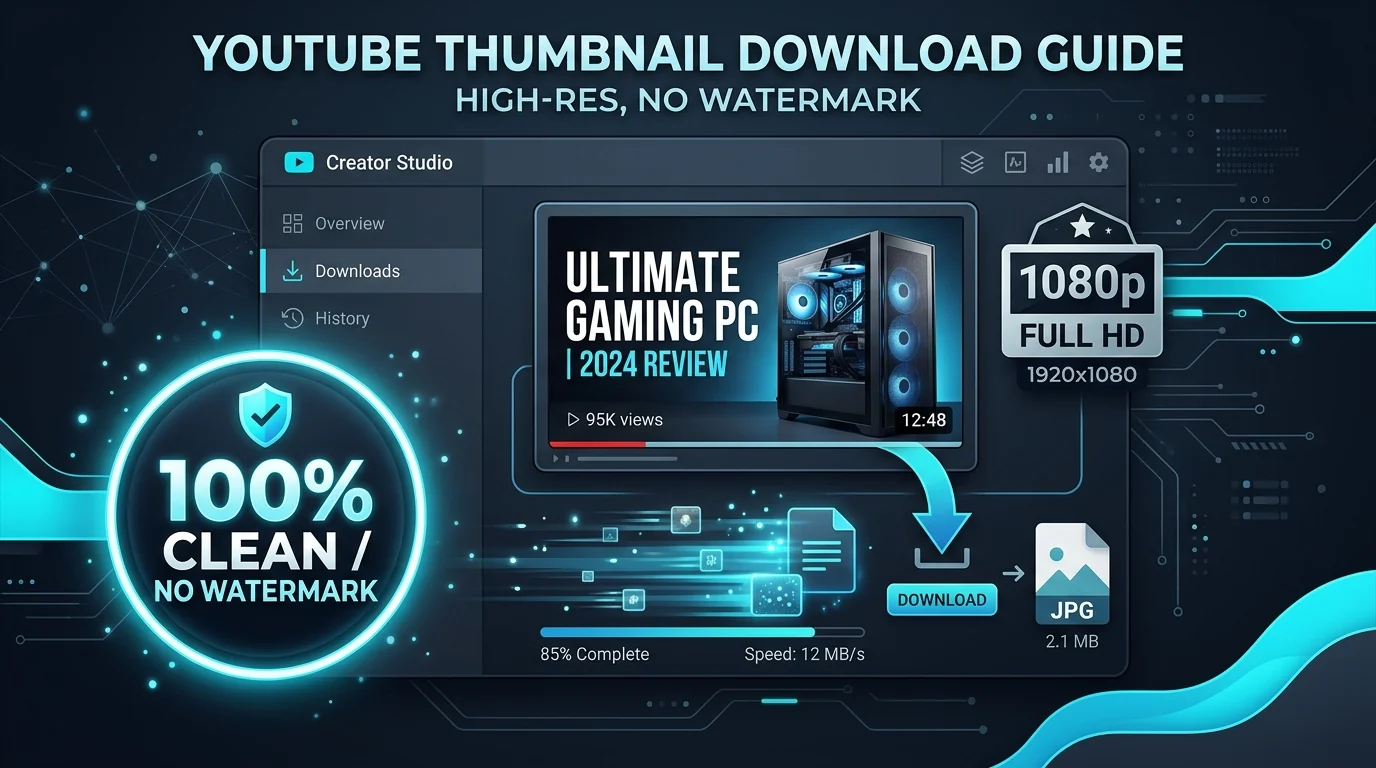
Whether you are building design swipe files, analyzing trending thumbnail psychology in Figma, or recovering your own lost YouTube cover art after a disk failure, one obstacle constantly gets in the way: unwanted watermarks, logos, and UI overlays.
When searching for "yt thumbnail download without watermark", creators often fall victim to shady web converters that stamp their own website logo in the corner, or they resort to smartphone screenshots that capture annoying play buttons, channel profile icons, and video duration badges.
In this guide, you will learn the exact technical mechanics of how YouTube stores thumbnail files, why direct CDN extraction yields 100% watermark-free images, and how to save pristine 1280×720 HD and 4K graphics in just one click.
Why Most Thumbnail Downloads End Up With Watermarks
To understand how to get clean thumbnail images, it is essential to identify the three main culprits responsible for unwanted watermarks:
1. The Screenshot Trap (Player UI & Channel Branding)
Taking a screenshot of a YouTube video or search result on a phone or desktop seems like the quickest workaround. However, YouTube dynamically renders multiple interface elements on top of the image:
- Timestamp Badges: The black duration badge (e.g.,
14:28) permanently covers the lower-right quadrant. - Channel Watermarks: YouTube's custom branding watermark (often an avatar or "Subscribe" button) floats in the bottom corner of video streams.
- Player Controls: Center play icons, title overlays, watch later bookmarks, and scrub bars obscure vital graphic elements.
Cropping these overlays out degrades the resolution and destroys the intended 16:9 widescreen or 9:16 vertical composition.
2. Spammy "Video Converters" Stamping Site Logos
Many free video-to-MP4 converter websites and generic "video grabber" tools automatically inject a branded watermark, promotional banner, or lower-third stamp into exported images. They do this to drive traffic back to their paywalled software or subscription plans.
3. YouTube Shorts Interface Clutter
On YouTube Shorts, the mobile interface is even more crowded. Engagement buttons (Like, Dislike, Comments, Share, Sound Remix) and the creator's channel handle span the right and bottom edges. A screenshot results in an unusable, cluttered image rather than clean cover art.
The Clean CDN Solution: How ClickMate Works
The secret to downloading YouTube thumbnails without watermarks lies in bypassing the video player entirely. When a creator uploads a video or custom thumbnail to YouTube Studio, Google stores the original image asset on its high-speed Content Delivery Network (CDN) at i.ytimg.com.
These static image files are stored in their pure, untouched state. They contain:
- Zero Player UI: No play buttons, no scrub bars, and no time badges.
- Zero Third-Party Logos: No website stamps or tool branding.
- Original Master Resolution: Up to 1280×720 pixels (HD) for landscape videos, and 641×1139 pixels for vertical Shorts.
ClickMate operates as a pure client-side inspector. When you paste a URL, ClickMate queries the official Google CDN endpoint directly in your browser. Because the image is served straight from YouTube's server to your device, there is zero intermediate processing and zero watermarking.
Comparison: Download Methods Compared
Here is how direct CDN extraction compares against screenshots and third-party converter tools:
| Method | Watermark Free? | Max Resolution | UI Overlays | Speed |
|---|---|---|---|---|
| ClickMate (Direct CDN) | ✓ 100% Clean | 1280 × 720 (Full HD) | None (Pristine) | Instant (< 1 sec) |
| Screen Capture / Screenshot | ✗ UI Contaminated | Screen resolution only | Play button, time badge | Manual crop required |
| Generic Video Converters | ✗ Adds Site Logo | Often compressed 480p | Watermark stamps added | Slow (queue / ads) |
| Manual Browser Inspect (DevTools) | ✓ 100% Clean | 1280 × 720 (Full HD) | None | Complex / tedious |
Step-by-Step: How to Download YouTube Thumbnails Without Watermarks
Following these three simple steps guarantees you obtain the raw master image file without logos or degradation:
Step 1: Copy the YouTube Video Link
Navigate to YouTube on your desktop browser or mobile application. Click the Share button beneath the video player and choose Copy Link. ClickMate supports standard watch URLs, shortened youtu.be links, live stream broadcasts, and vertical Shorts links.
Step 2: Paste the Link into ClickMate
Head over to ClickMate and paste the link into the search bar. ClickMate's instant parser immediately isolates the unique 11-character video ID and validates which resolutions are actively published on YouTube's CDN.
Step 3: Select Your Resolution & Save
ClickMate displays all available resolutions with live dimensions:
- HD 1080p / 720p (
maxresdefault.jpg): The best choice for desktop wallpapers, presentations, and graphic design swipe files. - Shorts Vertical 9:16 (
oardefault.jpg): Clean portrait cover art without horizontal black pillar bars. - Standard High Quality (
hqdefault.jpg): Universal fallback for older or lower-resolution uploads.
Click Download or Open Image. On mobile, press and hold the image to select "Save to Photos". On PC or Mac, right-click and pick "Save Image As...". Your file is saved as a crisp, uncompressed JPEG with zero watermarks.
Best Practices for Using Downloaded Thumbnails
Once you have your watermark-free thumbnail, keep these creator best practices in mind:
- Inspect High-CTR Design Choices: Zoom into the 1080p file to analyze how top creators manage rim lighting, high-contrast text outlines, and subject saturation.
- Maintain Aspect Ratios: Standard YouTube thumbnails use a 16:9 aspect ratio (1280×720 px). If you are repurposing graphics, preserve the aspect ratio to prevent distorted stretching.
- Respect Copyright & Fair Use: Thumbnails belong to the creator who uploaded them. Downloading thumbnails is permissible for personal study, moodboards, educational commentary, and fair use reviews. Never re-upload another creator's thumbnail as your own without authorization.