
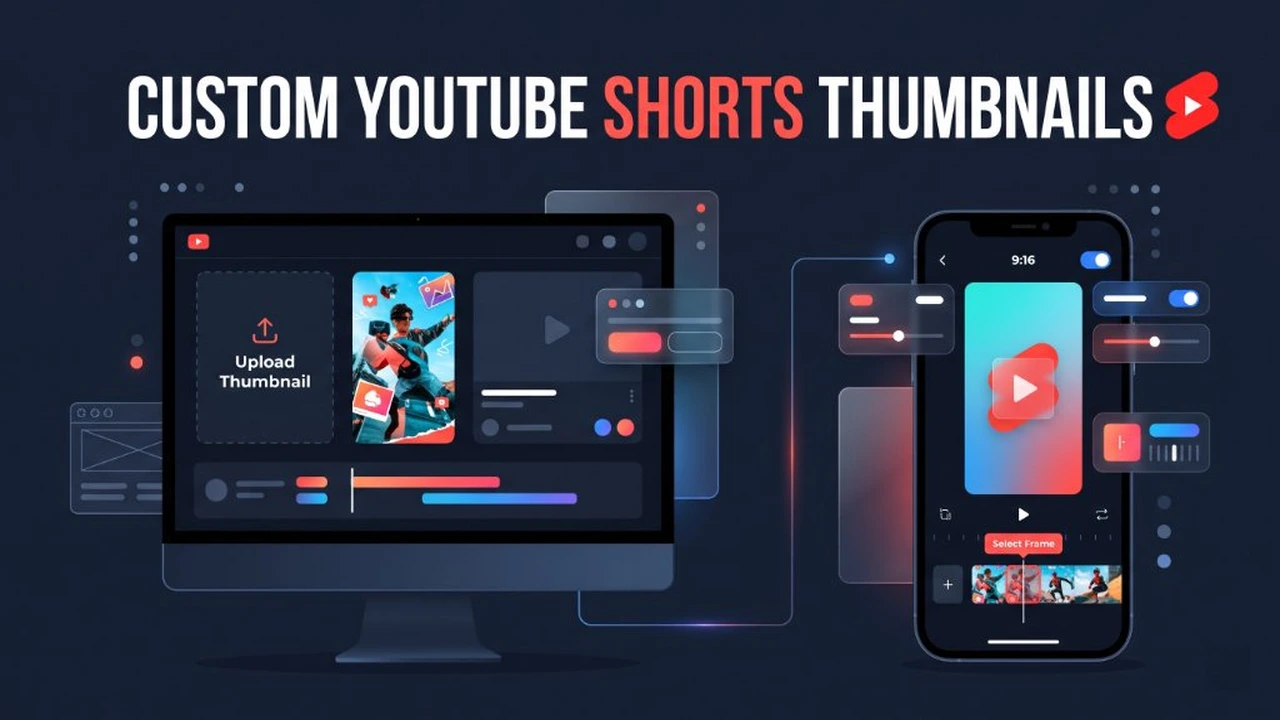
For nearly three years after Shorts launched, desktop editors were stuck with a frustrating limitation. If you uploaded a vertical video from your computer, YouTube randomly grabbed a middle frame—usually mid-blink or smeared with motion blur—and locked it in as your cover image. The only way around it was uploading from a phone and scrubbing through the video timeline with your thumb.
Thankfully, YouTube updated YouTube Studio on
desktop so creators can upload dedicated, custom-designed 9:16 cover graphics directly from
a PC or Mac. Even better, YouTube's image CDN (i.ytimg.com) stores these vertical covers cleanly
under the oardefault.jpg endpoint without slapping black 16:9 pillar bars on the sides.
Below is the exact workflow for uploading custom Shorts thumbnails on desktop, selecting crisp frames on iOS and Android, and designing vertical covers that survive YouTube's mobile UI overlays.
Do Custom Thumbnails Actually Matter for YouTube Shorts?
A common myth on creator forums is that Shorts thumbnails are useless because viewers just swipe through the vertical Shorts player. That is only half true.
When someone is already scrolling inside the dedicated vertical Shorts feed, they never see your thumbnail—the video auto-plays immediately. However, Shorts thumbnails are the primary click driver everywhere else on YouTube:
- YouTube Search Results: Tutorials, product reviews, tech comparisons, and recipe Shorts rank heavily in mobile and desktop search queries, where viewers pick which Short to tap based entirely on the vertical cover art.
- Home Page Shorts Shelves: The horizontal carousel row of four to six vertical cards on the YouTube homepage relies 100% on your static thumbnail visual hook and title.
- Channel Page & Subscriptions Tab: Anyone auditing your channel's Shorts tab or browsing their subscription grid sees your vertical cover before watching a single second.
- External Embeds & Google Search Video Carousels: Google
mobile search frequently displays a rich carousel of vertical Shorts at the top of the SERP using your
oardefault.jpgthumbnail file.
If 20% to 35% of your Shorts views come from YouTube Search or Browse Features (which you can check in YouTube Analytics under the Reach tab), fixing your thumbnail can immediately lift your click-through rate (see our benchmark guide on What Is a Good Impressions CTR on YouTube?).
Method 1: How to Change a YouTube Shorts Thumbnail on PC (Desktop Upload)
Uploading from a desktop browser gives you the biggest advantage: you can upload a separate, high-contrast PNG or JPG designed in Photoshop, Figma, or Canva rather than relying on a frame inside the video itself.
- Open YouTube Studio on Desktop: Sign in to your channel on Chrome, Safari, Edge, or Firefox and click Content in the left sidebar.
- Switch to the Shorts Tab: At the top of your content list, click the Shorts tab so you are viewing only your vertical uploads.
- Open Video Details: Hover your mouse over the Short you want to update and click the Details (pencil) icon.
- Locate the Thumbnail Box: Scroll down past the description box to the Thumbnail section.
- Click Upload File: Select Upload file and
choose your vertical
9:16image from your computer. (If the button is locked or greyed out, follow our step-by-step fix on why custom thumbnails are greyed out and complete one-time phone verification under YouTube Feature Eligibility). - Save Your Changes: Click the blue Save button in the top-right corner. YouTube's edge servers typically update your public thumbnail within 30 to 60 seconds.
To verify that YouTube stored your vertical cover cleanly without adding black sidebars, copy your Short
link and paste it into the ClickMate YouTube
Thumbnail Downloader. Check the Shorts Vertical (oardefault.jpg) card to
confirm your 641 × 1139 px portrait master file is live on Google Edge CDN.
Method 2: How to Pick a Custom Shorts Frame on Mobile (iPhone & Android)
If you upload directly from the main YouTube app on iOS or Android, the frame selector is only available during the initial upload screen before you hit publish.
- Start Your Short Upload: Open the YouTube mobile app, tap the + button at the bottom navigation bar, and select your vertical video.
- Proceed to the Details Screen: Trim your clip, add any audio or captions, and tap Next until you reach the final screen where you type your caption and set visibility.
- Tap the Pencil Icon on the Preview: Look at the small vertical video preview thumbnail in the top-left corner and tap the pencil icon overlaid on the image.
- Scrub to Your Sharpest Frame: Drag the bottom frame selector bar left or right until you land on a crisp, high-contrast frame with zero motion blur.
- Add Text Overlays (Optional): You can tap the Text or Filter buttons inside the thumbnail picker to place a short 2–3 word hook directly onto the cover frame without making that text stay on screen for the whole video.
- Tap Done and Upload: Tap Done in the top-right corner, then tap Upload Short.
The "0.1-Second Baked Frame" Trick for Mobile Uploaders
What if you edit on your phone in CapCut or Premiere Rush, and you want a fully custom designed graphic when uploading via the mobile app?
Drop your finished 1080 × 1920 px custom thumbnail graphic onto the very last frame
(final 0.1 seconds) of your video timeline before exporting. When you upload the video on the
YouTube mobile app, tap the pencil icon, slide the scrubber all the way to the final frame at the right edge,
and select it. Viewers watching the Short won't notice a 3-frame flash at the end of the loop, and your cover
will look like a studio-designed poster across the entire platform.
Official YouTube Shorts Thumbnail Specifications (2026)
When designing a custom vertical cover on desktop, stick to these exact technical boundaries so YouTube's WebP/JPEG compressor does not blur your typography:
| Specification | Official Requirement | Creator Best Practice |
|---|---|---|
| Aspect Ratio | 9:16 Vertical Portrait |
Never upload a 16:9 widescreen image on a Short; keep it strictly portrait. |
| Upload Resolution | 1080 × 1920 px |
Design at 1080 × 1920 px; YouTube CDN serves it at
641 × 1139 px (oardefault.jpg).
|
| Maximum File Size | 2 MB Ceiling |
Export as an 85%–90% quality JPEG (~400 KB) if your PNG
exceeds 2 MB. |
| Accepted Formats | .JPG, .PNG, .GIF |
Use .JPG for photo-heavy covers and .PNG for
sharp vector text hooks. |
| Color Profile | sRGB (8-bit) |
Convert from Display P3 or CMYK to standard sRGB so reds
don't look washed out. |
The 9:16 Safe Zone: Where NOT to Put Text on Shorts Covers
Designing a vertical 9:16 cover is completely different from designing a standard
16:9 widescreen thumbnail. On the YouTube homepage and search results, YouTube stamps interface
elements directly over your artwork:
- Bottom 25% (Title & View Count Gradient): YouTube adds a
dark gradient shadow across the bottom fifth of every Shorts card to print the video title (up to 2 lines)
and the view counter (e.g.
1.2M views). Any typography placed at the bottom will clash with the white UI font. - Top-Right Corner (Three-Dot Menu Icon): A vertical three-dot menu icon sits in the upper-right corner of every Shorts card on mobile devices.
- Center-Middle Safe Zone: Keep human faces, focal objects,
and 2-to-3 word bold text hooks inside the upper-middle 60% of the canvas (roughly 250 px
down from the top edge and 480 px up from the bottom edge on a
1080 × 1920canvas).
Want to see how top creators position their text inside the safe zone? Grab the link to any viral Short in
your niche, paste it into our YouTube Short Thumbnail Downloader guide or the main ClickMate tool, and inspect the raw
oardefault.jpg file at full size.
Frequently Asked Questions About Shorts Thumbnails
Can you upload a custom thumbnail to YouTube Shorts on PC?
Yes. Open YouTube Studio on a desktop browser, go to Content > Shorts, click the Details (pencil) icon on your Short, scroll to the Thumbnail section, and click Upload file to upload a custom 9:16 vertical image (up to 2 MB).
What is the best size for a custom YouTube Shorts thumbnail?
The recommended upload resolution for a custom YouTube Shorts thumbnail is 1080 × 1920
pixels (9:16 vertical aspect ratio) in JPG or PNG format under 2 MB. YouTube's CDN stores and
delivers the vertical cover as oardefault.jpg at 641 × 1139 pixels.
Why can't I change my YouTube Shorts thumbnail on the mobile app after publishing?
The YouTube mobile app only lets you scrub and pick a video frame during the initial upload screen. To
upload a custom image file to an already published Short, open studio.youtube.com in your
desktop browser or mobile browser in Desktop mode and use the Upload file button.
Why does my Short thumbnail still have black bars on the left and right?
Every YouTube video—including Shorts—generates legacy horizontal fallback files
(maxresdefault.jpg at 16:9 and hqdefault.jpg at 4:3) alongside the native
vertical oardefault.jpg file. If an older third-party website embeds your Short using a
standard 16:9 player, YouTube serves the pillarboxed horizontal fallback. On YouTube's own mobile app,
desktop shelves, and search pages, viewers always see the clean 9:16 portrait cover.
I uploaded a new Shorts thumbnail on PC, why hasn't it changed on my phone?
Mobile apps aggressively cache thumbnail images locally to save mobile data. Force-close the YouTube app and reopen it, or verify that the CDN file updated by pasting your link into ClickMate.